Smart home - Voice Control

Google Home Integration
Set up Coway Airmega Wi-Fi units to use Google Home voice commands.
Here you’ll find all the information you need to get your Airmega set up with Google Home.
Connect smart home devices to your Google Home device:
- On your mobile device, open the Google Home app.
- On the Home tab, tap the “Add” quick action.
- Tap Set up a device.
- Tap Have something already set up?
- Search Coway and link with your device.
- Follow the steps to complete setup.
Note: There isn’t a limit to the number of devices you can connect to Google Home.
Set nicknames for devices
You can choose names to call your smart home devices.
- On your mobile device, open the Google Home app.
- Tap a device in the home tab.
- Tap name.
For more information about connecting devices to Google Home, click here.
Below please find a list of FAQs when using Google Home with Coway Airmega. If you still need assistance, please contact our customer service center at 1-800-285-0982.
For additional support, please refer to Google Home’s support pages here.
Google Home is not responsive. What now?
Please check if the Coway Airmega and your Google Home device are both connected to a stable network. If the problem persists after fixing the possible network issue, determine which device is not working properly by checking the Coway Airmega using the iOS/Android application and other (non-Airmega) commands.
What happens if the Coway Airmega application is not working properly?
If the Coway Airmega application is not working, it may be due to the following reasons:
- The server may be down (notification will be sent for scheduled maintenance). If you receive a notification of “Server maintenance. Please try later,” it means that we’re working on the server and should be back up in few hours.
- Check if the Coway Airmega is powered on. Coway Airmega will only recognize command(s) to power on when the device is off.
- The device may not be plugged in.
If the problem persists, please contact us, we’re here to help!
What does the error message “Coway Airmega is not connected” mean?
This error message means that the Coway Airmega unit is disconnected from Google Home.
What happens if the Coway Airmega application is not working properly?
If the Coway Airmega application is not working, it may be due to the following reasons:
- The server may be down (notification will be sent for scheduled maintenance). If you receive a notification of “Server maintenance. Please try later,” it means that we’re working on the server and should be back up in few hours.
- Check if the Coway Airmega is powered on. Coway Airmega will only recognize command(s) to power on when the device is off.
- The device may not be plugged in.
If the problem persists, please contact us, we’re here to help!
What does the error message “Coway Airmega is not connected” mean?
This error message means that the Coway Airmega unit is disconnected from Google Home.
What happens if the Google Home application is not working properly
Your Google Home might not be hearing you correctly or your Coway Airmega might not be correctly linked to Google Home. For help with fixing these issues please go to Google Home support. Note: The Coway Airmega may recognize the command up to 10-seconds after the device is turned off.
What does the “Coway Airmega is off” error message mean?
This means the Coway Airmega is currently not turned on.
What does the error message “Lost connection to server” mean?
This means the Coway Airmega is no longer connected to the server.
What does the “Server maintenance, please try later” error message mean
This error message means that the Coway Airmega server is currently under maintenance and should be back online soon.
Below please find a list of commands for the Coway Airmega. These commands include functionality such as turning on your Coway Airmega unit, changing the fan speed and determining your indoor air quality. Commands must be structured in the following format in order for Google Home to understand and execute the command, say “OK Google, (command).
If you have one Coway Airmega unit, you do not need to use a nickname for your Coway Airmega. For example: OK Google, ask Coway Airmega to activate the air purifier.
If you have more than one unit, you will need to use the nickname. For example: OK Google, turn on Red.
Download a copy of the command list.
| Power: | |
|---|---|
| Power: On | OK Google, turn (nickname) on. |
| Power: Off | OK Google, turn (nickname) off. |
| Fan Speed: | |
| Fan Speed: Level One | OK Google, change (nickname) fan speed to level one. |
| Fan Speed: Level Two | OK Google, change (nickname) fan speed to level two. |
| Fan Speed: Level One | OK Google, change (nickname) fan speed to level three. |
| Fan Speed: Low | OK Google, change (nickname) fan speed to level low. |
| Fan Speed: Level Medium | OK Google, change (nickname) fan speed to level medium. |
| Fan Speed: Level High | OK Google, change (nickname) fan speed to level high. |
| Modes: | |
| Mode: Smart | OK Google, change to (nickname) smart mode. |
| Mode: Auto | OK Google, change to (nickname) auto mode. |
| Mode: Sleep | OK Google, change to (nickname) sleep mode. |
| Sleep Timer: | |
| Timer: One Hour | OK Google, set (nickname) sleep timer to one hour. |
| Timer: Two Hours | OK Google, set (nickname) sleep timer to two hours. |
| Timer: Four Hours | OK Google, set (nickname) sleep timer to four hours. |
| Timer: Eight Hours | OK Google, set (nickname) sleep timer to eight hours. |
| Light: | |
| Light: On | OK Google, turn (nickname) light on. |
| Light: Off | OK Google, turn (nickname) light off. |
Amazon Alexa Integration
Set up Coway Airmega Wi-Fi units to use Amazon Alexa voice commands.

Here you will find all the information you need to get your Airmega set up with Alexa. In this section, find out how to give your Airmega a nickname and pair your unit with Alexa.
Pairing Airmega with Alexa:
Before you can begin using your Airmega with the Amazon Alexa, you will need to pair them. Below please find instructions on how to pair:
1. Alexa device paired and connected to network.
2. Coway Air Purifier (AP-1512HHS, Airmega 300S/400S-ONLY) paired and connected to network (https://www.cowaymega.com/app-pairing)
3. Open the Alexa app.
4. Search "Coway Smart Home" under the "Skills" tab
5. Click "Enable Skill" on Coway Smart Home in-app, then login using the Coway IoCare App ID/PW to verify device(s)
6. If connected, you'll receive a message of "Coway Smart Home has been successfully linked"
7. Test the Air Purifier commands as you wish!
Giving Your Airmega a Nickname:
By default, your air purifier’s nickname is Airmega. If you have more than one Airmega in your home, you will need to give each of your Airmega units a nickname in order to control them using Alexa. This name will be used every time you issue a command to Alexa.
Below please find a list of FAQs when using Alexa with Airmega. If you still need assistance, please contact our customer service center at 1-800-285-0982.
For additional support, please refer to Amazon’s Alexa support pages:
https://www.amazon.com/alexasupport
https://www.amazon.com/echosupport
https://www.amazon.com/help/alexa/quickfixes
Alexa is not responsive, what now
Please check if the Airmega and your Alexa device are both connected to a stable network. If the problem persists after fixing the possible network issue, determine which device is not working properly by checking the Airmega using the iOS/Android application and using other (non-Airmega) commands. For additional help please go to:
https://www.amazon.com/help/alexa/quickfixes.
What happens if the Airmega application is not working properly?
If the Airmega application is not working, it may be due to the following reasons:
- The server may be down (notification will be sent for scheduled maintenance). If you receive a notification of “Server maintenance. Please try later”, it means that we’re working on the server and should be back up in few hours.
- Check if the Airmega is powered on. Airmega will only recognize command(s) to power on the device when off.
- The device may not be plugged in.
If the problem consists, please contact us on our website, we’re here to help!
What happens if Alexa is not working properly?
Alexa might not be hearing you correctly or your Airmega might not be correctly linked to Alexa. For help with fixing these issues please go to:
https://www.amazon.com/help/alexa/quickfixes. Note: The Airmega may recognize the command up to 10-seconds after the device is turned off.
What does the error message “Airmega is not connected” mean?
This error message means that the Airmega unit it disconnected from Alexa.
What does the “Airmega is off” error message mean?
This means the Airmega is currently not turned on.
What does the error message “Lost connection to server” mean?
This means the Airmega is no longer connected to the server.
What does the “Server maintenance, please try later” error message mean?
This error message means that the Airmega server is currently under maintenance and should be back online soon.
Below please find a list of commands for the Airmega. These commands include functionality such as: turning on your Airmega unit, changing the fan speed and determining your indoor air quality. Commands must be structured in the following format in order for Alexa to understand and execute the command — Alexa, ask (Airmega or Nickname) to (command).
If you have one Airmega unit, you do not need to use a ‘Nickname’ for your Airmega. For example: Alexa, turn on the Airmega.
If you have more than one unit, you will need to use the ‘Nickname’. For example: Alexa, Turn on Red.
Download a copy of the command list.
| Power: | |
|---|---|
| Power: On | Alexa, turn (nickname) on. |
| Power: Off | Alexa, turn (nickname) off. |
| Fan Speed: | |
| Fan Speed: Level One | Alexa, change (nickname) fan speed to level one. |
| Fan Speed: Level Two | Alexa, change (nickname) fan speed to level two. |
| Fan Speed: Level One | Alexa, change (nickname) fan speed to level three. |
| Fan Speed: Low | Alexa, change (nickname) fan speed to level low. |
| Fan Speed: Level Medium | Alexa, change (nickname) fan speed to level medium. |
| Fan Speed: Level High | Alexa, change (nickname) fan speed to level high. |
| Modes: | |
| Mode: Smart | Alexa, change to (nickname) smart mode. |
| Mode: Auto | Alexa, change to (nickname) auto mode. |
| Mode: Sleep | Alexa, change to (nickname) sleep mode. |
| Sleep Timer: | |
| Timer: One Hour | Alexa, set (nickname) sleep timer to one hour. |
| Timer: Two Hours | Alexa, set (nickname) sleep timer to two hours. |
| Timer: Four Hours | Alexa, set (nickname) sleep timer to four hours. |
| Timer: Eight Hours | Alexa, set (nickname) sleep timer to eight hours. |
| Light: | |
| Light: On | Alexa, turn (nickname) light on. |
| Light: Off | Alexa, turn (nickname) light off. |
Best Sellers
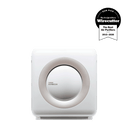
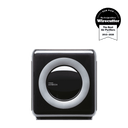
Airmega Mighty AP-1512HH
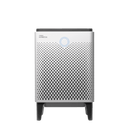
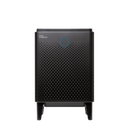

Airmega 400
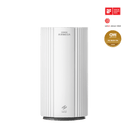
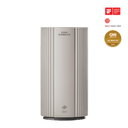
Airmega 350


Airmega Mighty Beige


Airmega 250